Convert WAV to Text with AI
Turn WAV interviews, lectures and meeting recordings into editable text. Upload your audio or paste a direct file link, then review and download your transcript. Free up to 20 minutes and 200 MB per file.
For longer recordings and cloud historyFor longer recordings and cloud historyExplore ProHow to convert WAV to text?
-
Step 1
1. Upload your WAV recording
Drag and drop a WAV file from your computer, or paste a public direct audio link. Use your original recording—there is no need to convert it to MP3 first. Free local transcription supports up to 20 minutes and 200 MB per file.
-
Step 2
2. Choose the language and transcribe
Select the spoken language or use automatic detection, then start transcription. Keep this tab open while free transcription runs on your device. For longer WAV recordings, Pro offers cloud processing.
-
Step 3
3. Review and download your transcript
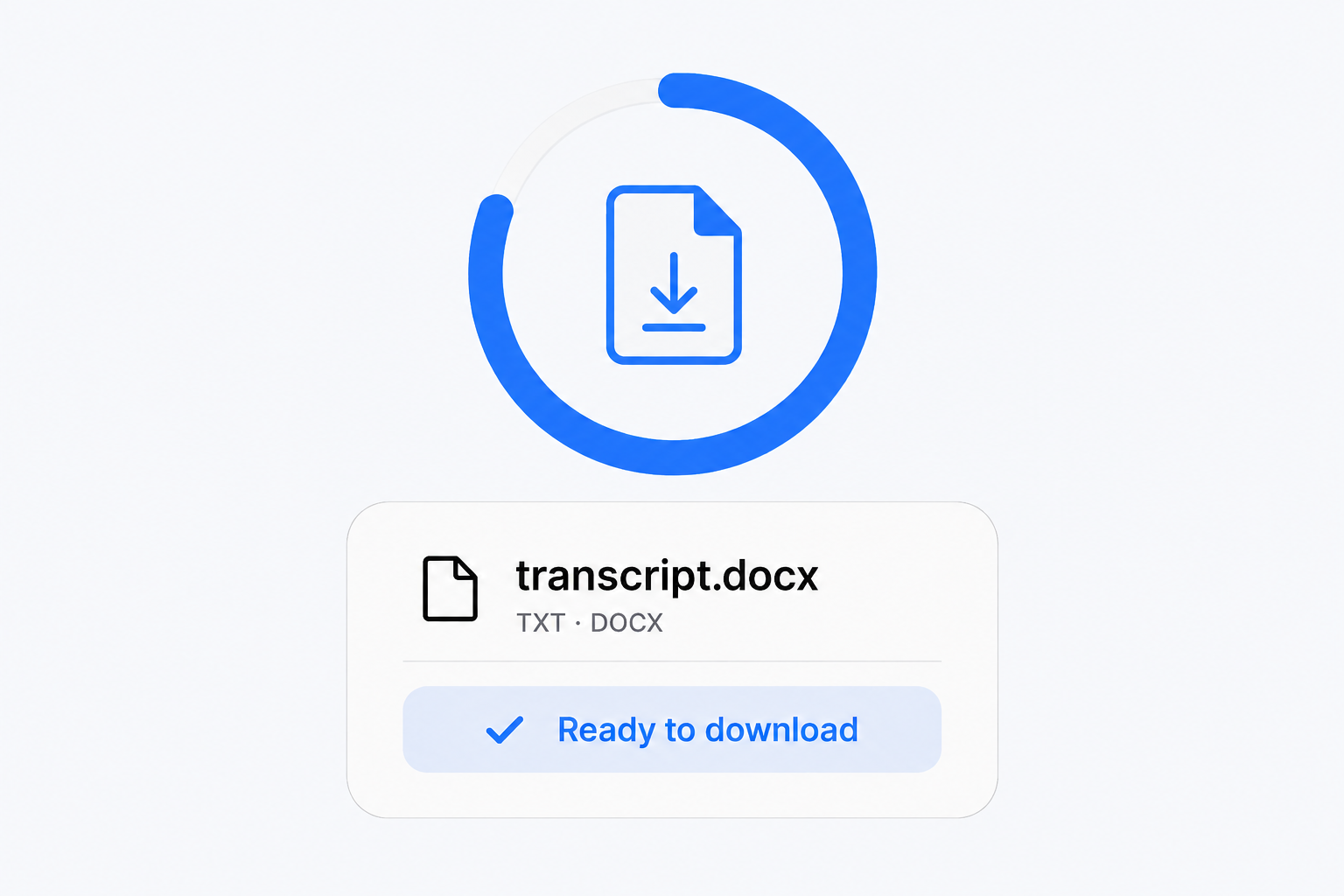
Listen back at any timestamp and correct names, quotes or technical terms. Download the edited text as TXT or Word, or choose SRT or VTT for subtitles. Save your local result before closing the tab.
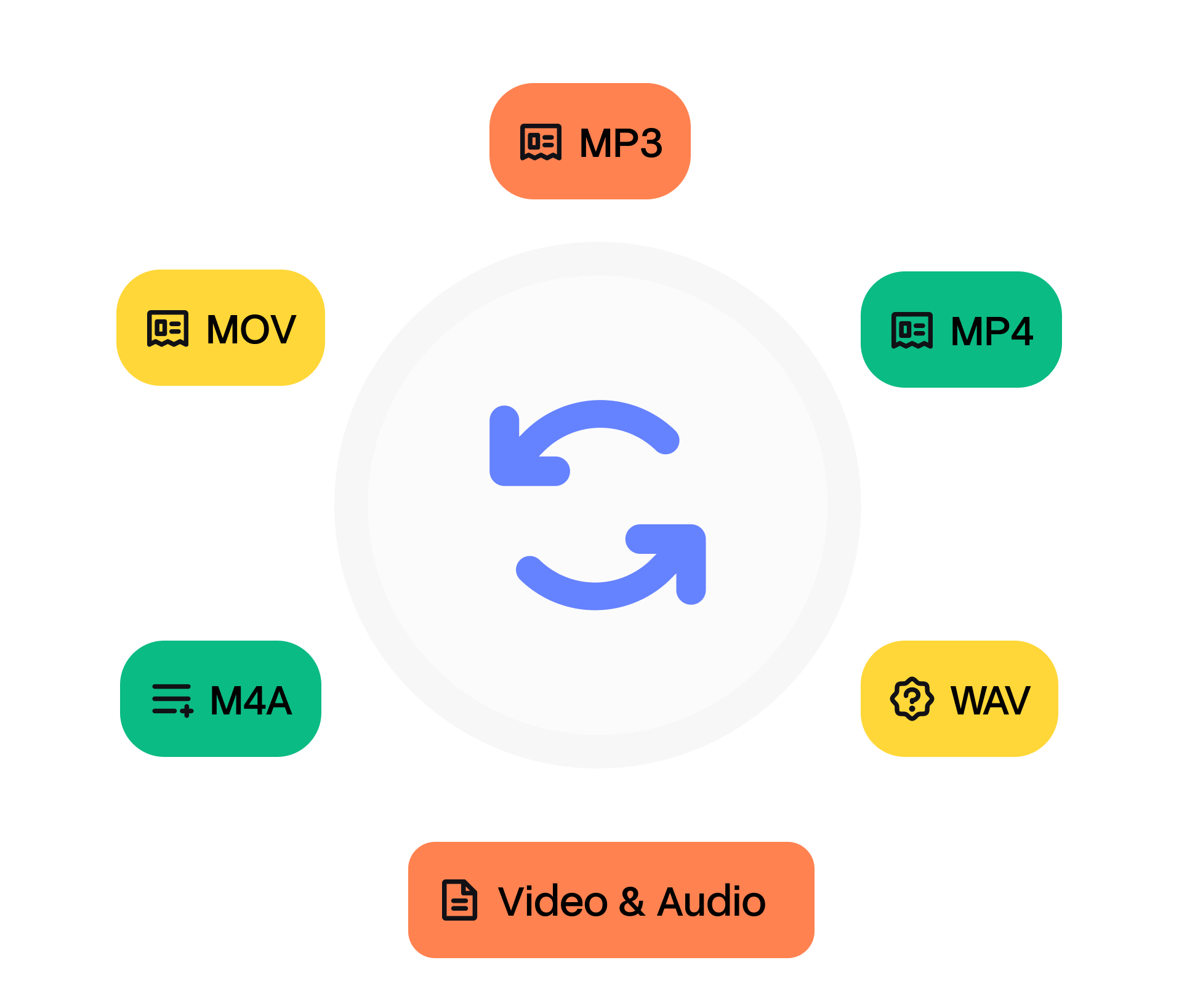
Why Choose Whisper Web's WAV to Text Converter?
98+ Languages
Transcribe WAV recordings in 98+ languages. Choose the spoken language or let Whisper Web detect it automatically.
Review with confidence
Turn spoken audio into editable text, then listen back to check names, quotes and important details. Clear recordings give the best results.
Less manual work
Spend less time typing out recordings. AI creates a first draft so you can focus on reviewing and using the text.
Your processing choice
Free transcription processes audio locally in your browser. Pro uploads your recording for cloud processing, longer files and saved history.
Clear transcripts, powered by OpenAI Whisper
Whisper Web Pro uses OpenAI Whisper to turn your WAV recordings into editable text in the cloud. Whisper was trained on 680,000 hours of multilingual audio, helping it recognize speech across different accents and recording conditions. Listen back and make corrections to names, quotes, or important details before sharing your transcript. Prefer to keep your audio on your device? Free transcription runs locally in your browser.
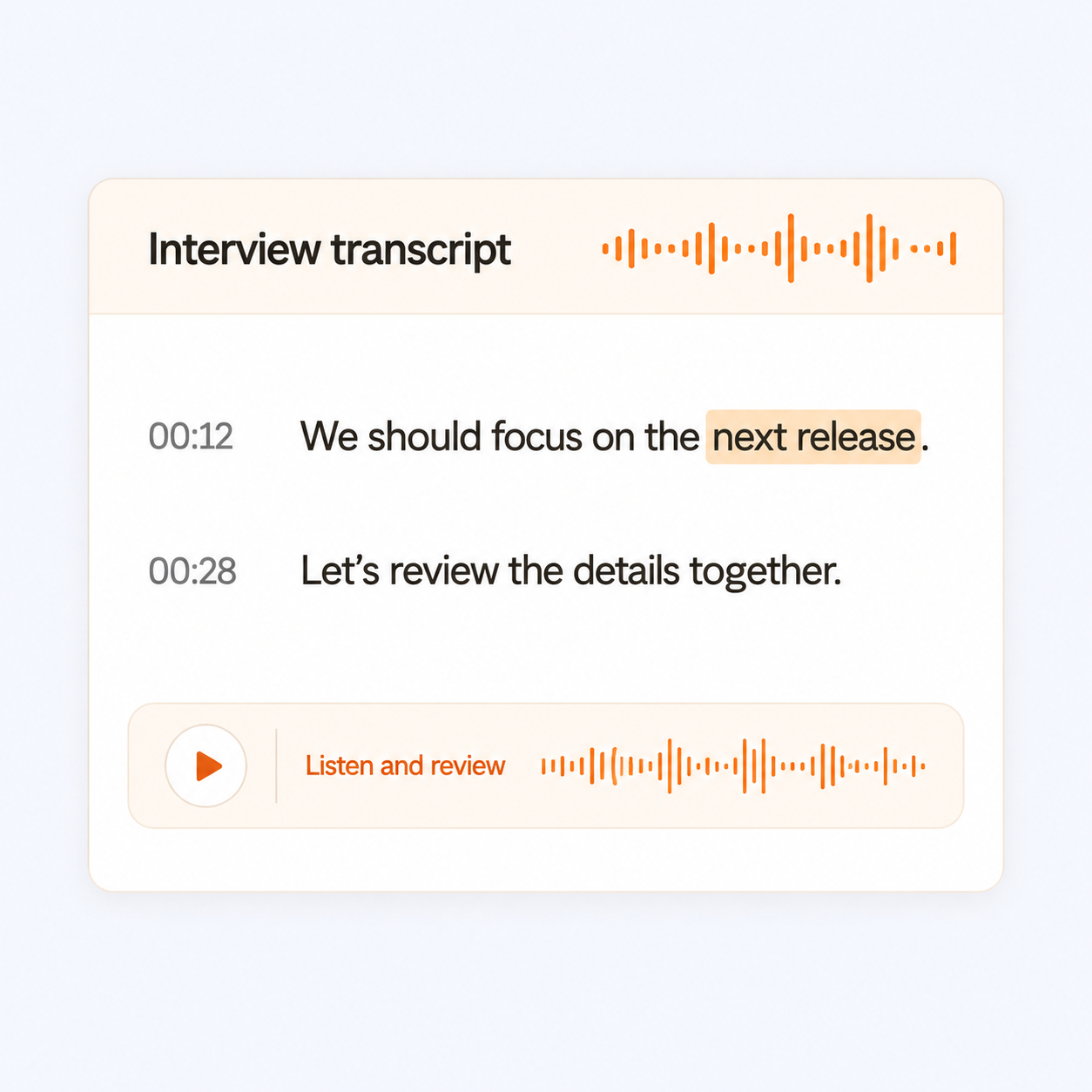
Faster Than Manual Transcription
Skip typing out every sentence yourself. Whisper Web turns your WAV recording into a draft you can search, edit and download. Processing time depends on the recording length, model and your device; the first local run also downloads a speech model. For longer recordings, Pro offers cloud processing.
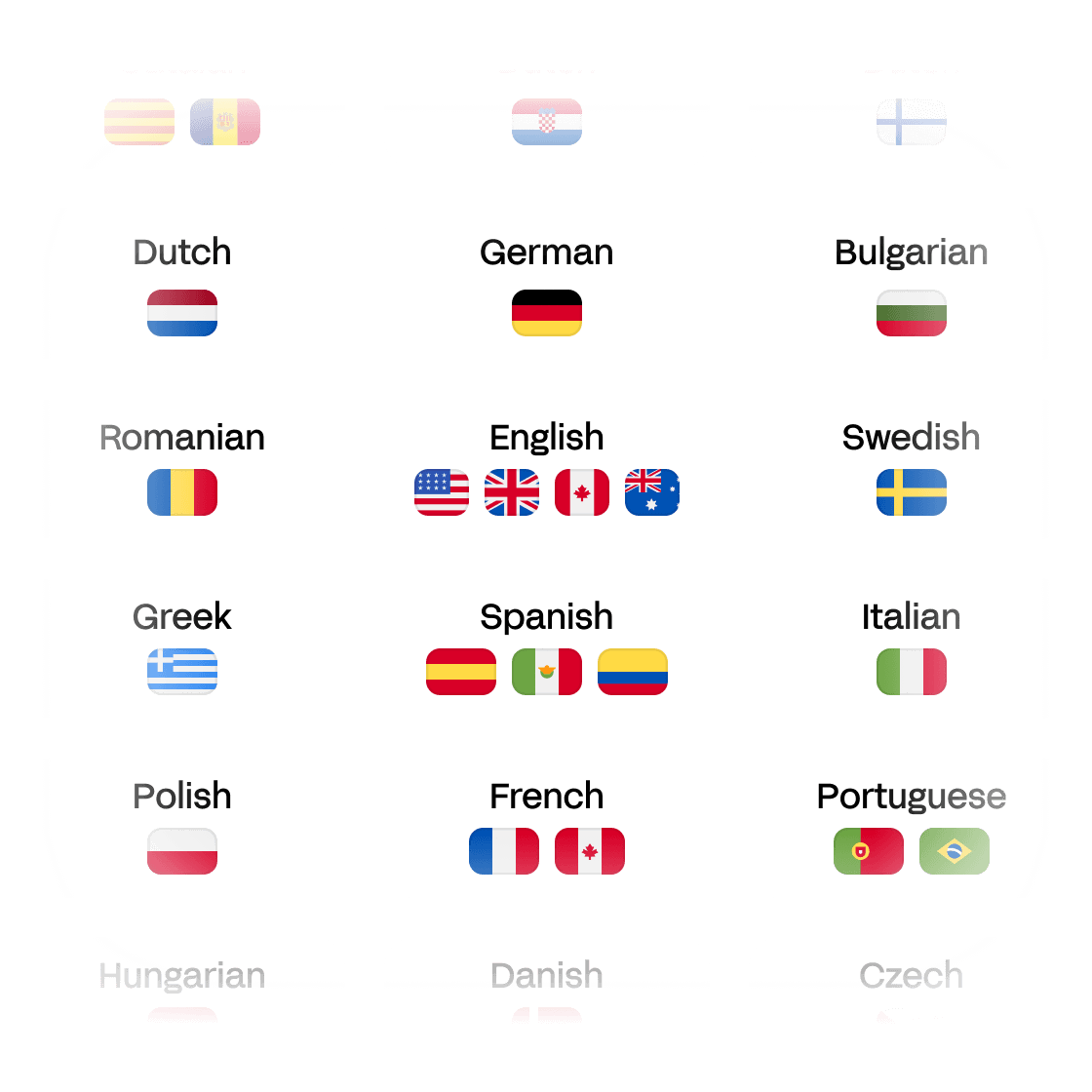
Support for 98+ Languages
Transcribe WAV recordings in 98+ languages, including English, Spanish, French, German, Arabic, Chinese and Japanese. Choose the spoken language or use automatic detection. Your transcript stays in the original language, making it easier to work with interviews, lectures and recordings from different communities.
Who Benefits from Whisper Web?
Frequently Asked Questions
How do I convert a WAV file to text?
Select your WAV recording or paste a public direct audio link, choose the spoken language, and start transcription. Whisper Web turns the speech into editable text. Review the transcript alongside the audio, then copy it or download a document or subtitle file.
Can I transcribe WAV files for free?
Yes. Free local transcription supports WAV files up to 20 minutes and 200 MB each, with no signup or credit card required. You can review, edit and export your transcript on this page. Pro adds cloud processing for longer recordings, batch uploads and saved history.
Can I transcribe a large WAV file?
Yes, within your plan's file limits. WAV recordings can take up more space than compressed audio, so check both the file size and duration. Free local transcription allows up to 200 MB and 20 minutes per file. If your recording exceeds either limit, use Pro cloud transcription or split it into shorter files.
How accurate is WAV transcription?
Clear speech and the correct language setting give the best results. Background noise, overlapping voices and unclear speech can still cause mistakes—a WAV file alone does not guarantee better accuracy. Replay uncertain passages and check names, numbers and important quotes before using the text.
Do I need to convert WAV to MP3 before transcribing?
Usually not. Start with your WAV file to avoid an extra conversion step. Local processing depends on your browser being able to decode the recording. If it cannot read the file, try exporting a standard PCM WAV copy from your audio editor, or use an MP3 copy instead.
Can I edit my WAV transcript?
Yes. Search for words, edit paragraphs and click timestamps to listen to the original audio. Your corrections are included when you copy or download the transcript. You review the text yourself; Whisper Web does not include a human proofreading service.
Can I convert WAV to Word, text or subtitles?
Yes. Download your corrected transcript as Word (DOCX) or plain text (TXT), with optional timestamps. You can also export SRT or VTT subtitles, download JSON, or copy the text. These exports contain the transcript, not a converted audio recording.
Which languages can I transcribe from a WAV file?
Whisper Web supports 98+ languages, including English, Spanish, French, German, Chinese, Japanese and Korean. Select the spoken language or use automatic detection. The transcript stays in the original language; this page does not automatically translate it.
Can I transcribe a WAV recording from a link?
Yes, if the link points directly to a public audio file that your browser can access. A YouTube page or private Google Drive or Dropbox sharing page is not a direct audio link. If importing fails, download a recording you own or have permission to use and upload it from your device.
Is my WAV recording uploaded to a server?
Not during free local transcription: your browser processes the audio on your device. Pro uses cloud processing and uploads your media for transcription and saved history. For local results, copy or download your transcript before closing the tab.