Choose a recording
Select or drop an audio file. The waveform gives you a visual guide to speech, pauses and other sections.
Choose the part you want to keep. Preview, download, or transcribe just that clip.
Audio file
Choose a file to trim
Drop an audio file
MP3, WAV, M4A and other browser-supported formats
Audio stays on this device
Select or drop an audio file. The waveform gives you a visual guide to speech, pauses and other sections.
Drag the handles to keep a section. Enter the start and end times in seconds when you know where the clip should begin or end.
Play the selection to check the first and last words. Download the clip as WAV or open the selection for transcription.
Trim the wait before a speaker starts and the room noise after they finish. Preview the cut to check that the opening words stay intact.
Keep a single answer, a podcast excerpt or one passage from a lecture. Save it as a separate file you can send or replay.
Choose the part you want in writing. For free local transcription, keep the exported clip within 20 minutes and 200 MB.
Try the sample with a short selection. Move either handle or enter a new time, then listen to hear what the exported clip will contain.
Sample interview
2.3 – 8.7
Try MP3, WAV, M4A, AAC, FLAC, OGG or another format supported by your browser. If the file fails to open, try converting it to WAV or MP3.
Enter values in the Start and End fields. With a waveform handle focused, arrow keys adjust the time by 0.1 seconds and Shift plus an arrow adjusts it by 1 second.
Each export keeps one continuous range. To keep the parts on either side of an unwanted passage, export them as two clips.
The trimmer creates a separate WAV file for the selection. Your original file stays as it was.
Transcribe clip opens just the selected range. Free mode processes eligible clips locally. The optional Unlimited cloud workflow uploads the clip you select.
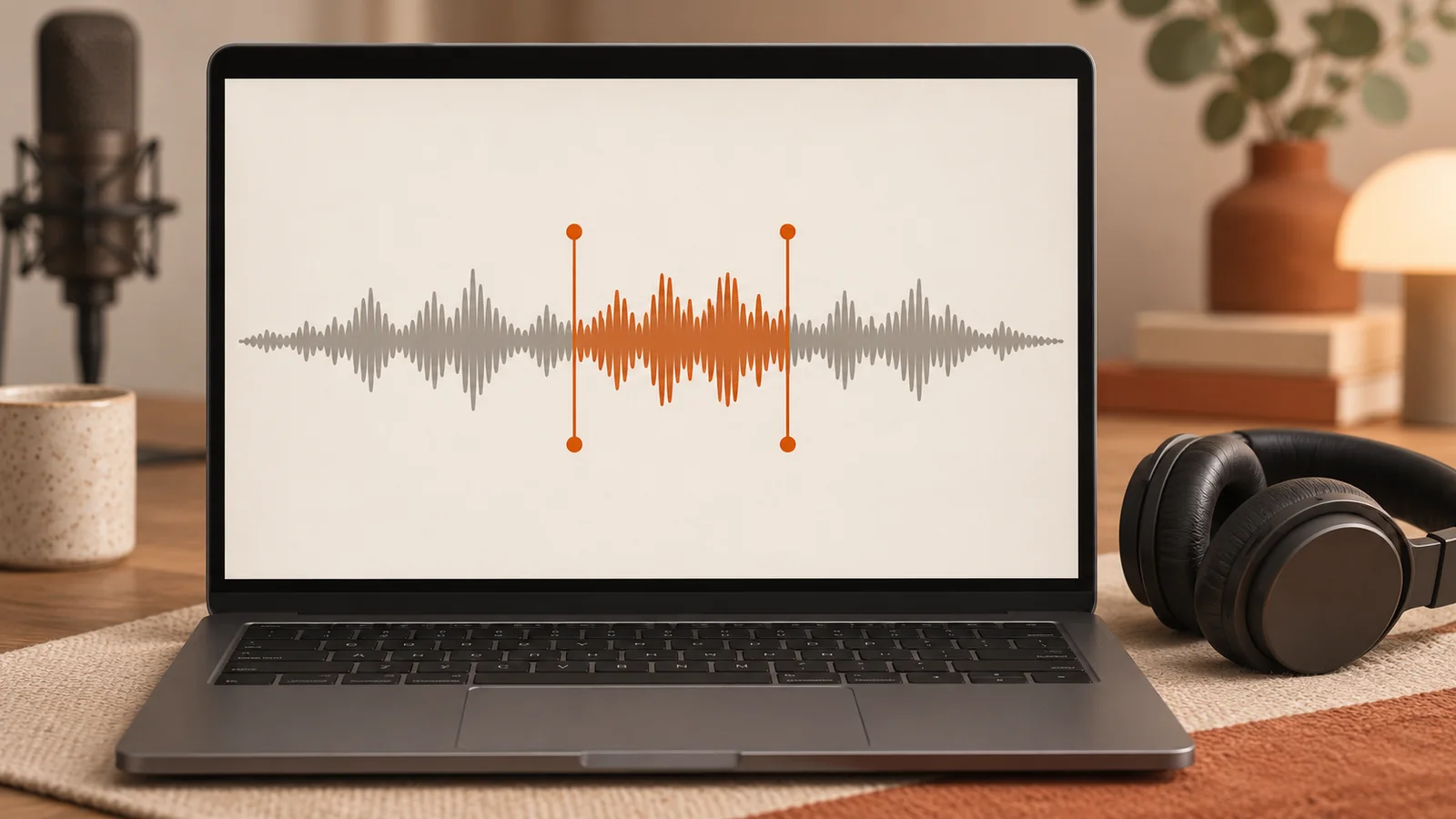
Trim an MP3, WAV, or M4A file in your browser. Set the start and end, listen to the selection, then download the clip as WAV or turn it into text.

Got a recording longer than 20 minutes? Learn how to split it at natural pauses, transcribe each part for free in your browser, and join the text back together without losing words.
Want to transcribe audio without uploading it first? This practical guide shows how to turn sensitive recordings into text locally in your browser, with less friction and more control.