How to Trim Audio Online and Export Just the Clip
Trim an MP3, WAV, or M4A file in your browser. Set the start and end, listen to the selection, then download the clip as WAV or turn it into text.
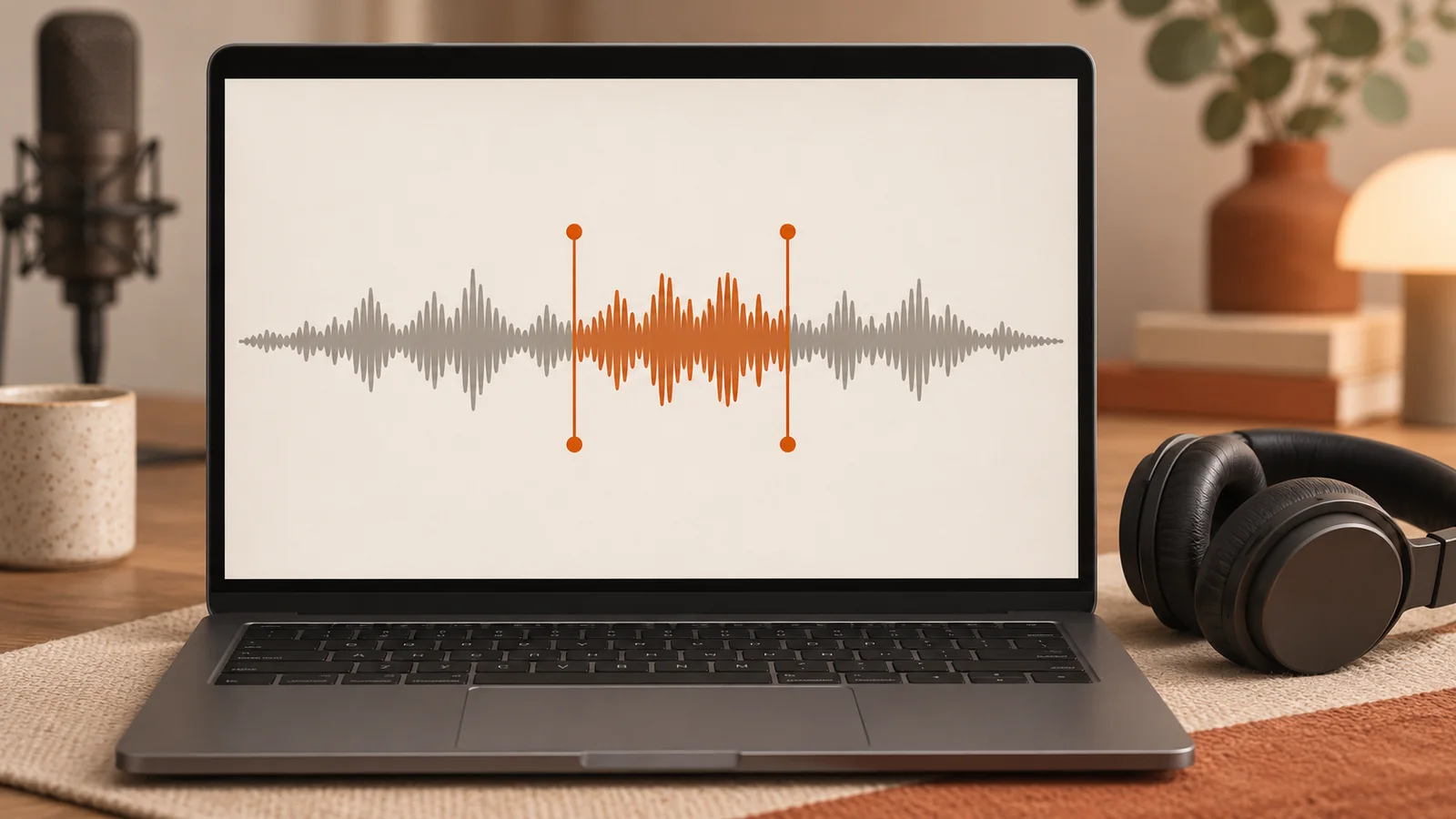
To trim audio online, open the Whisper Web Audio Trimmer and add your file. Use the waveform to find the part you want, set its start and end, and preview it. You can download that range as a separate WAV or open it for transcription.
Choose the part you want to keep
Choose a file or drop it into the tool. Common formats include MP3, WAV, and M4A. The formats you can open depend on what your browser can decode. If a recording will not open, try the Audio to MP3 converter and open the converted file.
The waveform helps you locate speech and pauses. Drag the two handles until they bracket the part you want. To make a precise cut, enter seconds in Start (s) and End (s). You can also focus a handle and use the arrow keys to move it by 0.1 seconds, or hold Shift to move it by 1 second.
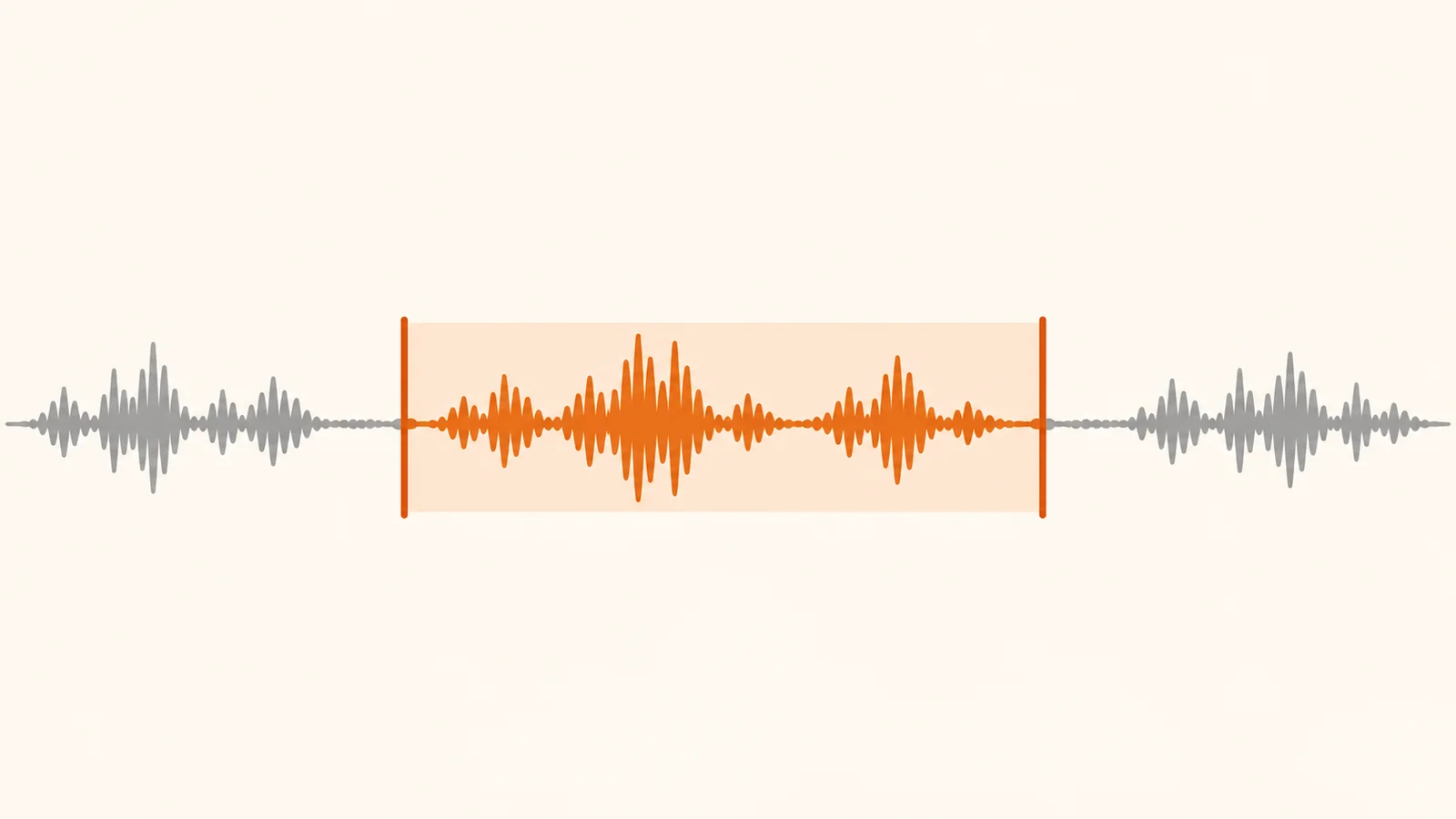
Example of cutting a quote from an interview
Suppose the answer starts at 12.90 seconds and the speaker finishes at 28.40 seconds. Before exporting, leave a small space on either side so you can hear the beginning and end of the sentence clearly.
- Set Start to 12.40.
- Set End to 28.70.
- The selected clip is 16.30 seconds long.
Choose Preview selected clip and listen to the first consonant and the last word. If the preview cuts off a sound, move that handle a little earlier or later and try again. Try a different starting point if your clip begins halfway through a breath or a question that the answer needs for context.
If you need to cite the original recording, note the start of the clip before you export. Timecodes in the new file start at zero. A moment at 3.20 seconds in this example corresponds to 15.60 seconds in the source file.
Download the clip or transcribe the selection
Choose Download clip for a new WAV containing the selected range. The browser reads your source file and writes a separate result. You can name it with the interview topic and source range so you can find it later.
For written notes, click Transcribe clip. Whisper Web opens the Dashboard with the selected range already attached. You can choose a language and start transcription. Free local transcription supports eligible files up to 20 minutes and 200 MB. The optional Unlimited workflow uploads the chosen clip for cloud transcription.
If the recording is a long lecture and you need all of it, choose natural breaks and export one part at a time. See the guide to splitting a long recording for transcription for a workflow that keeps nearby context with each section.
Save more than one section
Each export contains one continuous range. To omit a private aside from the middle of a recording, save the material before it as one clip and the material after it as a second clip. To pull several quotes from a single file, save your first selection, use Reset range, and set the next pair of times.
Keep the original when you need a complete record. When sending a quote to a colleague, open the downloaded clip once to confirm its name and listen for both boundaries. This also helps you spot an earlier file with a similar name before sharing.
Why a clip from an MP3 downloads as WAV
The trimmer decodes the input and writes the selected samples to a new WAV. A WAV can be larger than an MP3 of the same duration because its PCM samples take more space. If you need a lightweight copy, use the audio-to-MP3 converter on the WAV. If you need a new take first, open the Online Voice Recorder and run a short sound check.
Related articles

Transcribe a Long Recording for Free: How to Split It Under the 20-Minute Limit
Got a recording longer than 20 minutes? Learn how to split it at natural pauses, transcribe each part for free in your browser, and join the text back together without losing words.
How to Record Audio in Your Browser and Save It as WAV
Use your microphone to record audio online, run a quick sound check, and save the result as WAV. Includes fixes for quiet audio and microphone permissions.
How to Transcribe Audio Without Uploading It
Want to transcribe audio without uploading it first? This practical guide shows how to turn sensitive recordings into text locally in your browser, with less friction and more control.