How to Record Audio in Your Browser and Save It as WAV
Use your microphone to record audio online, run a quick sound check, and save the result as WAV. Includes fixes for quiet audio and microphone permissions.
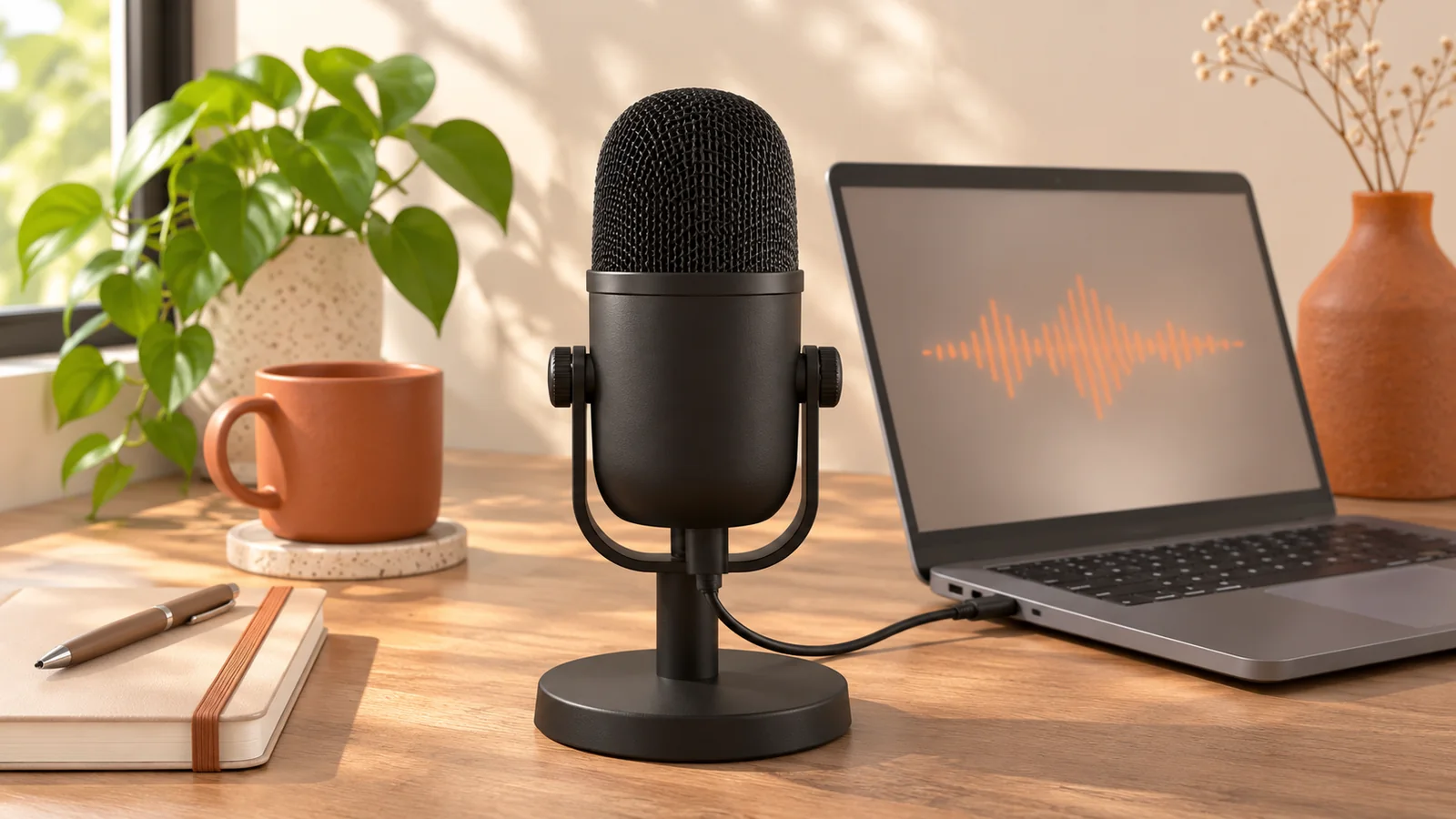
Open the Whisper Web Online Voice Recorder, allow microphone access, and record a few seconds. You can listen back before you save a WAV file. A short sound check helps you catch the wrong microphone or a noisy room while there is still time to change it.
Check the microphone before you record
Connect the microphone or headset before opening the recorder. Your browser uses the selected microphone, so plugging in headphones can change which input is active. Close the gap between the microphone and the speaker before turning up the input level.
For a desk microphone, start about a handspan away and speak slightly to the side of it. On a laptop or phone, keep the device still and avoid touching the desk or case while you speak. For a conversation, ask permission before you record the other person.
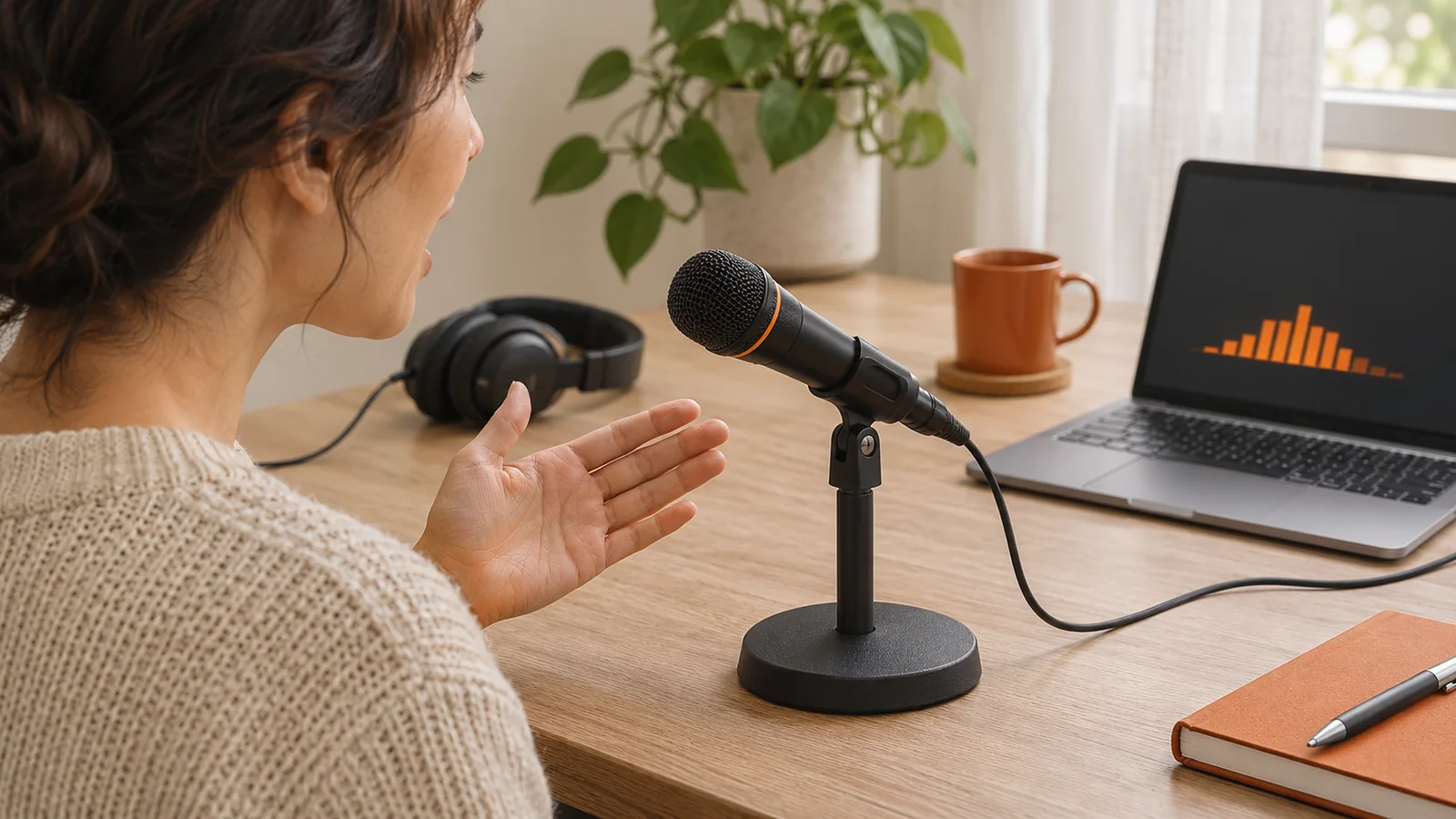
Record a short test first
- Click Start recording and allow the browser to use your microphone.
- Say a few words at your normal volume and watch the waveform. Include a brief pause so you can hear the room between words.
- Click Stop recording and play it back with headphones. Check the level, the first word and any background noise.
If the voice is distant, move closer and try again. If loud syllables sound rough or crackle, lower the input level in your system settings, or move a little farther away. If you hear keyboard noise, place the microphone on a stable surface away from the keyboard and record another short test.
You can also click Try sample audio to check the playback and download controls before you grant microphone access.
Record the take and save your WAV
Choose New recording to start over after the test. Use Pause to stop capture during a break and Resume to keep going in the same take. When you finish, listen to at least the beginning and end. Choose Download audio before closing the page or starting a new recording.
WAV is useful when you want to keep a copy for editing. Size depends on duration, sample rate, and how many channels the recording has. For example, a minute of mono 16-bit PCM at 48 kHz takes about 5.8 MB, and stereo at the same settings takes about 11.5 MB. To make a smaller copy for sharing, you can convert the WAV to MP3 after saving it.
If your browser cannot use the microphone
Check microphone permissions for this site. In Chrome on a computer, you can review them under Privacy and security, then Site settings and Microphone. Choose the input you intend to use and check the site's permission. If your system asks Chrome for microphone access, allow it in the system settings too. See Chrome's microphone settings guide.
If you can start recording but the waveform stays flat, test the input in your sound settings. Headset mute buttons, a loose USB connection or the wrong device can all produce silence. On a phone, keep the browser visible and save the WAV before you leave the page.
The recorder captures the microphone selected by the browser. To work with a file you already have, open Audio to Text. For a phone recording, the voice memo workflow shows how to get the file off the device and into a transcript.
Keep the recording or turn it into text
Click Transcribe recording to open the WAV in the Dashboard with the file already selected. Check the language, start transcription, and review names and quotations against the audio. Free local transcription processes eligible files up to 20 minutes and 200 MB in the browser. The optional Unlimited workflow uploads the file you choose for cloud processing.
If you want just one quote or answer, save the WAV and open it in the Audio Trimmer. You can choose a start and end, listen to the result, and export only that clip.
Related articles
How to Turn Voice Memos into Text Privately
Turn voice memos into clean notes without a heavy cloud workspace. Learn a practical private workflow for recording, transcribing, editing, and exporting voice notes.
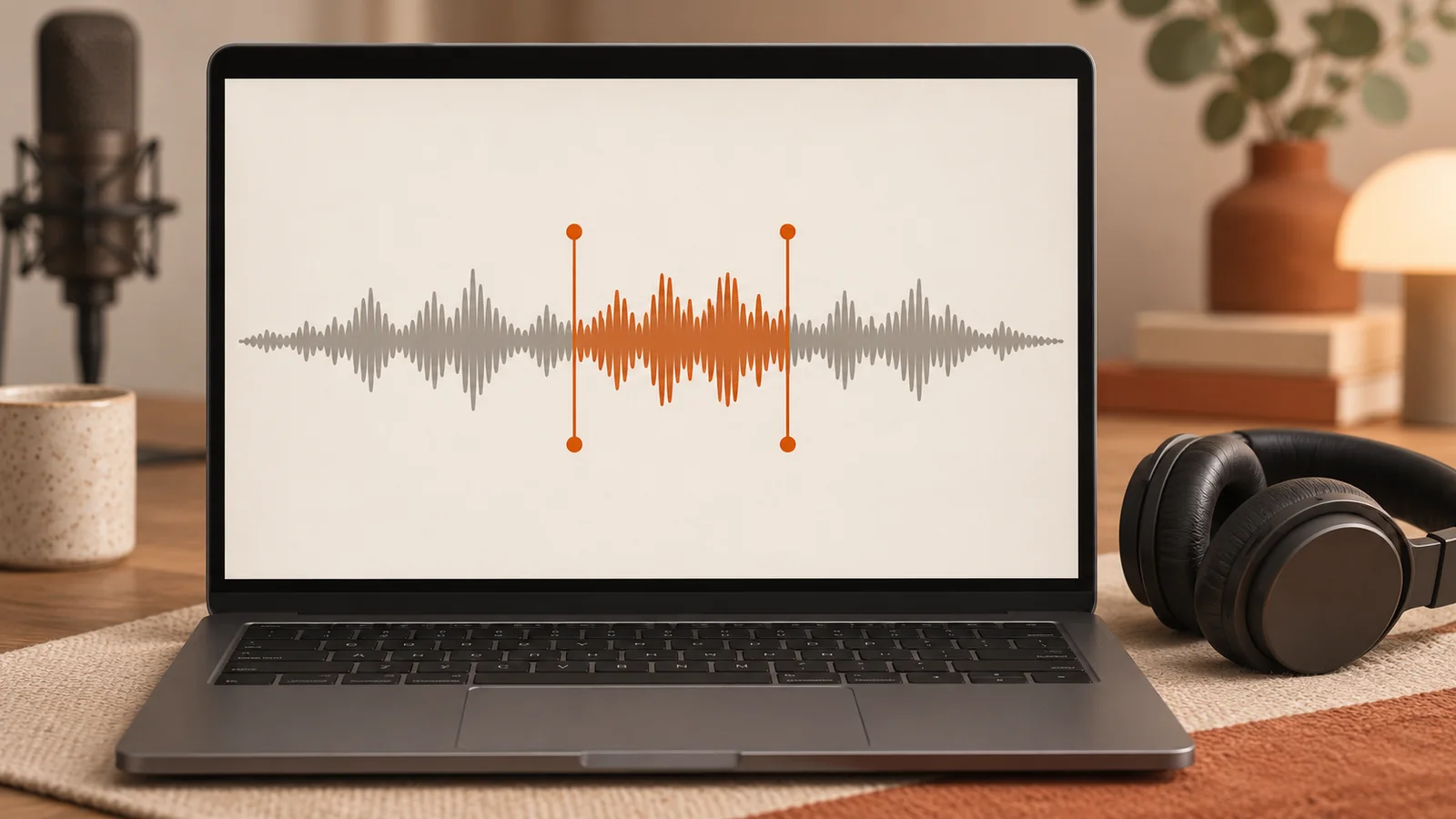
How to Trim Audio Online and Export Just the Clip
Trim an MP3, WAV, or M4A file in your browser. Set the start and end, listen to the selection, then download the clip as WAV or turn it into text.
How to Transcribe Audio Without Uploading It
Want to transcribe audio without uploading it first? This practical guide shows how to turn sensitive recordings into text locally in your browser, with less friction and more control.